Channels
Overview
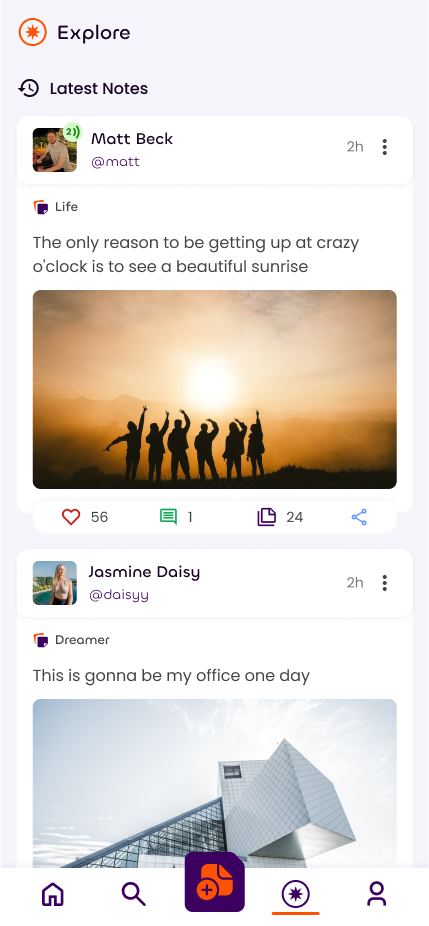
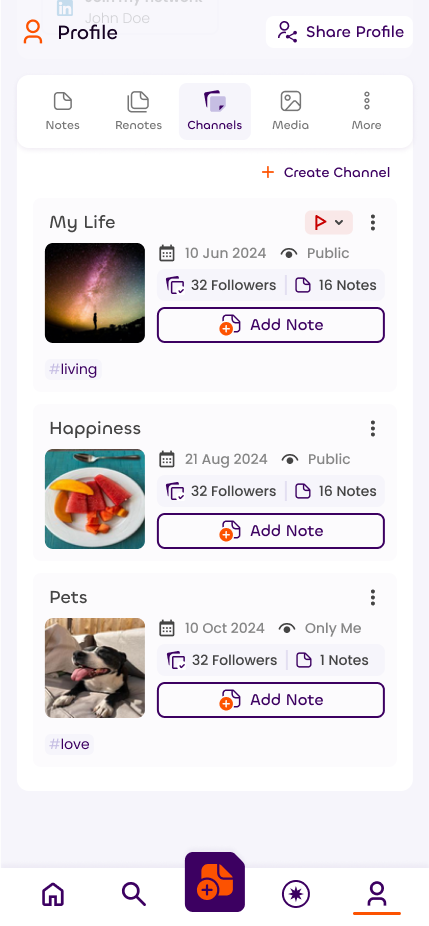
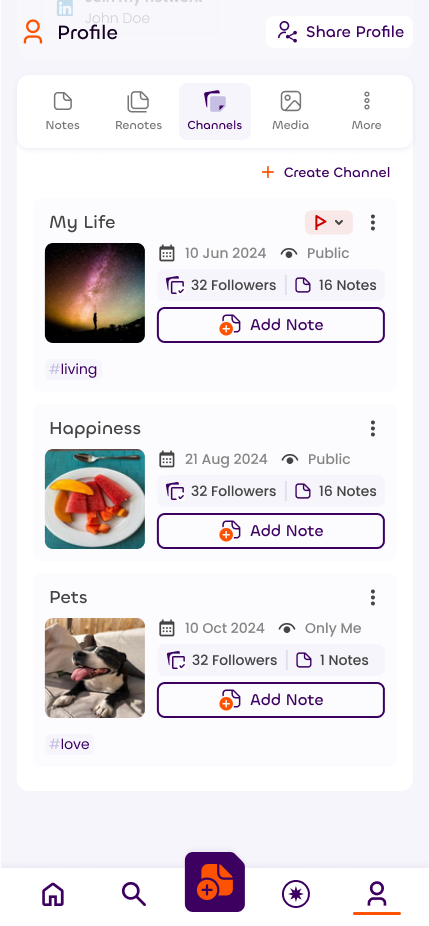
Channels are a useful way of separating out your notes on Sonata and every note you post must be assigned into one of your channels.
This should allow you to express yourself better, as there's no need to define what you're talking about within every post you make. Also, there's no need to be concerned about your posts making little sense after unrelated previous posts.
When other people follow you, they can choose which of your channels they follow, letting them focus on the things that interest them.
Channels can be assigned hashtags, which automatically and silently apply to all of the notes within them. If you change the hashtags then every existing note will also have their silent hashtags changed.
Channels are probably Sonata's most powerful feature, make sure to make good use of them!
Suggested Use
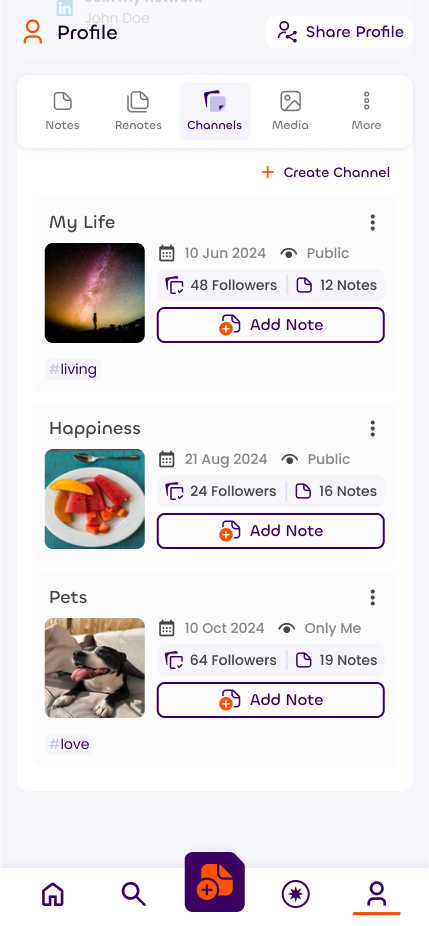
We suggest that you create channels for all of the topics you like talking about. Set relevant hashtags within each channel and choose an image that fits.
Make sure you set your most regular channel as the default, so it appears at the top of the list each time.
Channel Flags
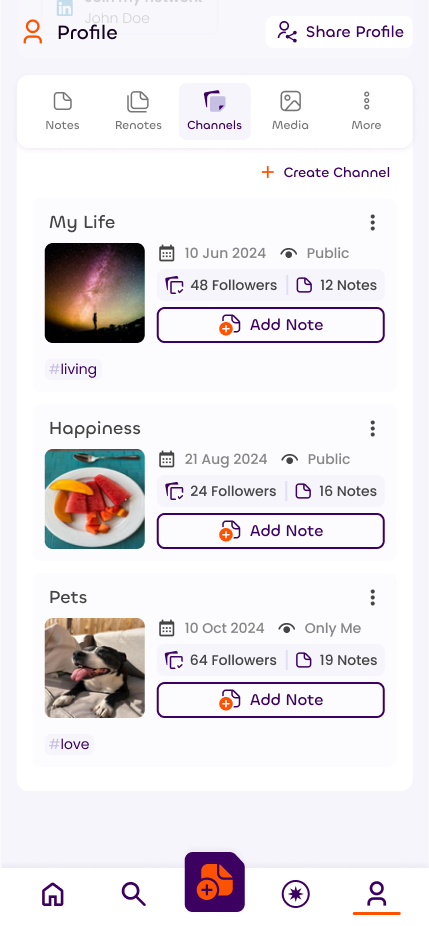
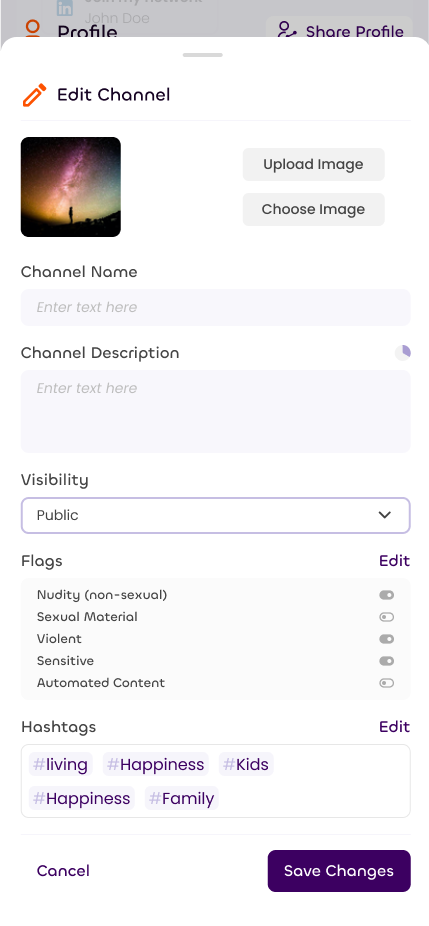
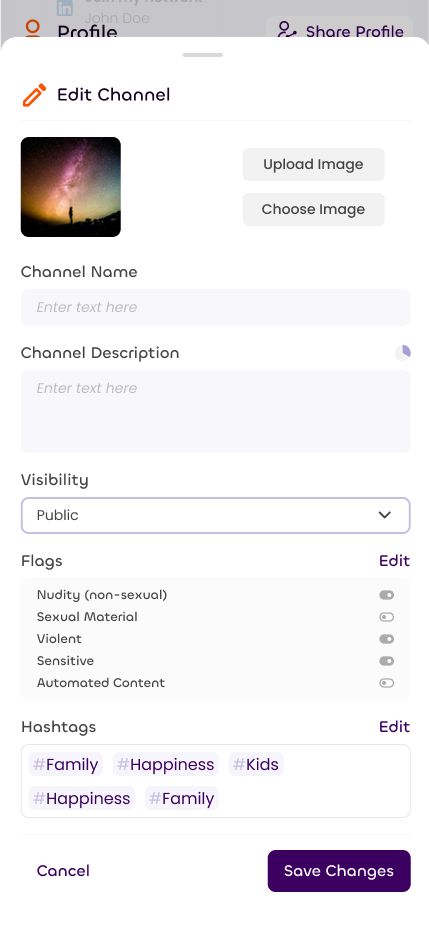
Channels make self flagging content easy. Every flag set in a channel works as a default for your new content when you create a new note, giving you more control than the account level default flags.
The channel flags will override the account level flags if set, so you can still use both.
Each channel has three options for every flag:
- On: Sets the flag as on regardless of what you have set in your account settings.
- Account default (default): Uses the value you set in your account settings.
- Off: Sets the flag as off regardless of what you have set in your account settings.
Channel Hashtags
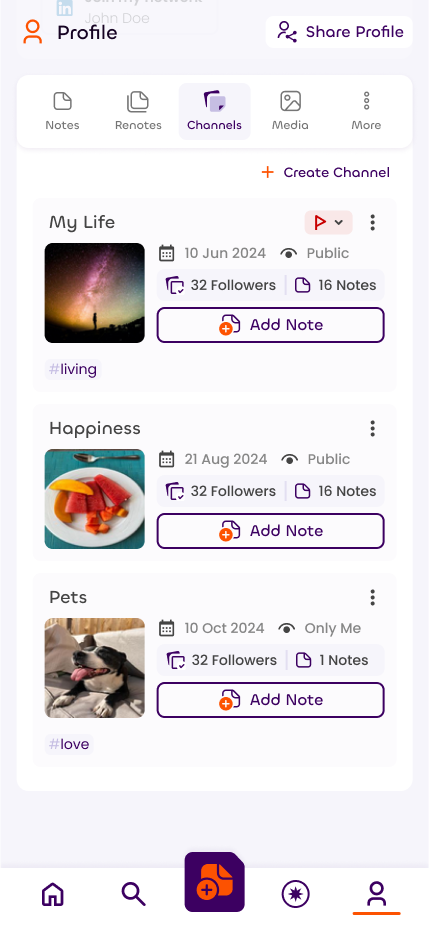
Notes on Sonata need fewer hashtags than other social platforms as you can set them instead within their channel. Any hashtag set in the channel will apply to each note within, as if they had them written directly in.
This also lets you change the hidden hashtags in a whole set of existing notes, by updating the channel hashtags.
You can set a total of 5 channel hashtags.
Channel Images
Each channel can have an image and the default channels will come with one pre-set.
You can either upload your own image or choose one from the Pexels service by searching within the channel edit screen.
Channel Permissions
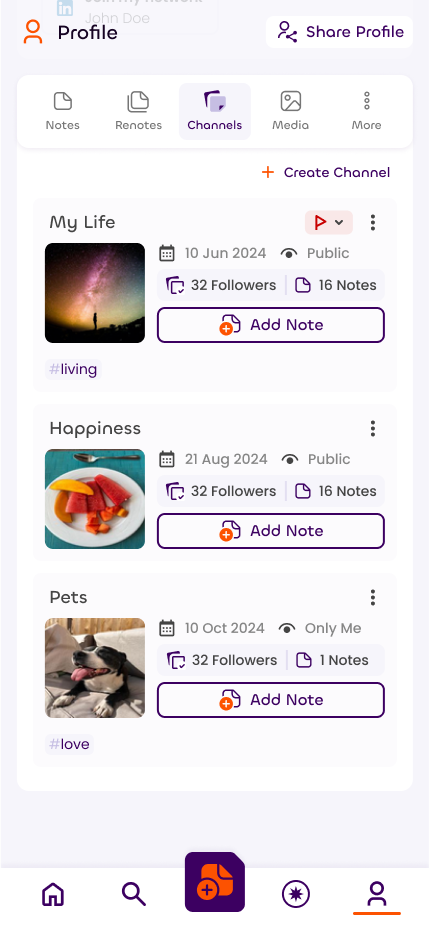
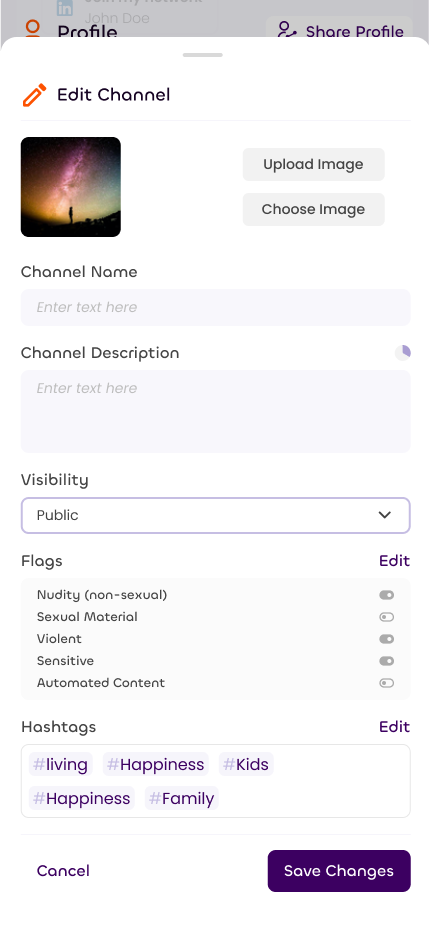
Channels allow you to control who can see your posts by choosing from the permissions drop down:
- Only me: Set both the channel and notes within as fully private.
- Public: Everyone can see the channel and the notes within (default)
- Followers: Only users that follow your account (they don't need to be following your channel)
Future Plans
Channels will soon link in to a new type of feed, using the shared hashtags within them. This will let us create things like a pets feed, hobbies feed and a vacation feed.